 Raccoon Wiki
Dashboard
The Dashboard is the first screen shown after BotUI boots. It acts as the root of the application: every other screen is reached by navigating forward from here, and pressing back from any sub-screen returns here.
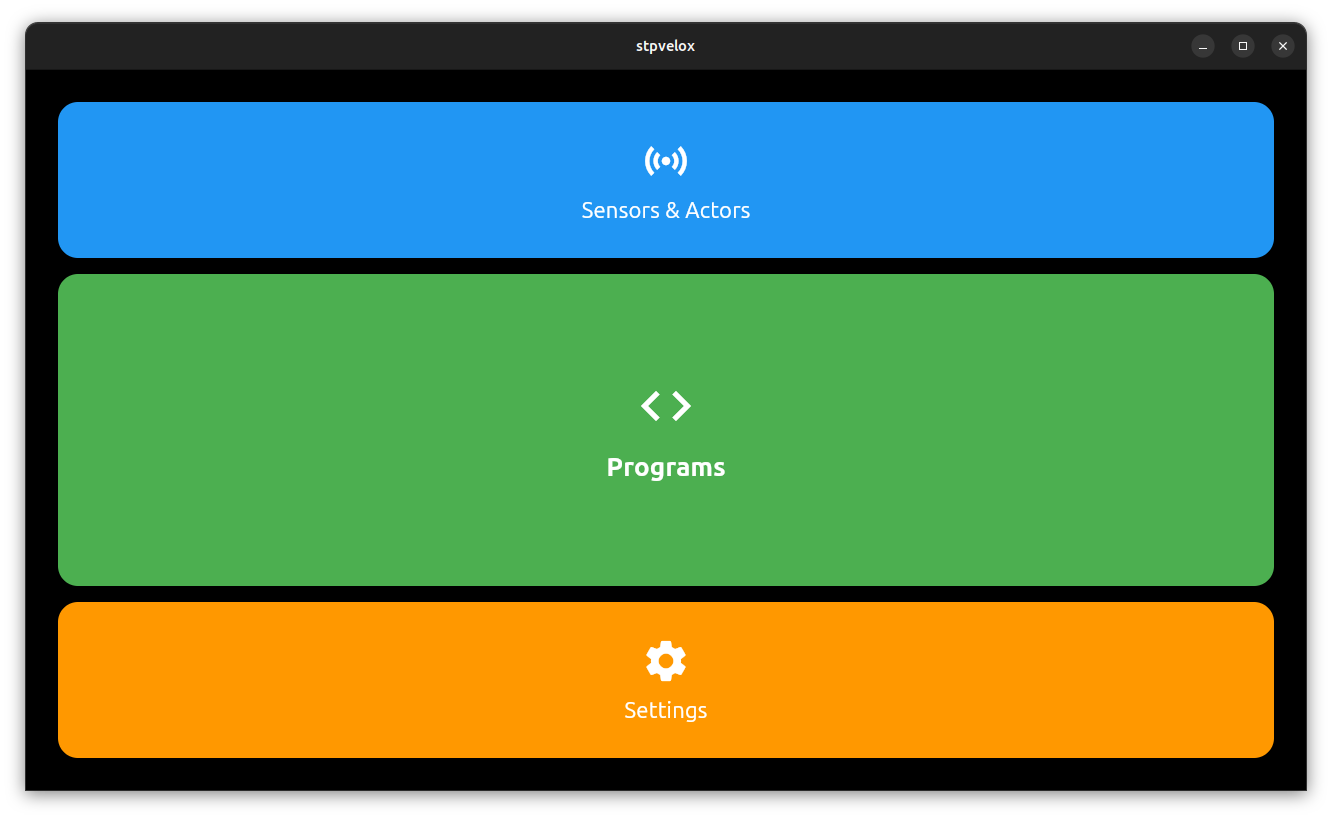
Concept
The Dashboard has one job: get you to the right screen as fast as possible during a competition. During a run you typically need to reach Programs in one tap and Sensors in two. The large Programs tile in the centre reflects that priority. Between runs, the screensaver keeps the display active without wasting screen real estate on static information.
Tile Layout
The tiles are arranged in a single column and sized using flex weights, so the screen is always fully filled regardless of resolution:
| Tile | Flex weight | Destination |
|---|---|---|
| Sensors & Actors | 1 (smaller) | Sensor graphs and actor controls |
| Programs | 2 (large, center) | Program list and execution |
| Settings | 1 (smaller) | System and device configuration |
The Programs tile is intentionally the largest because it is the most-used feature during a competition run. Tap any tile to navigate to that section; use the back arrow in the top bar to return to the Dashboard from any sub-screen.
Screensaver
When the Dashboard is idle, BotUI shows an animated robot face (the screensaver). The screensaver activates only on the Dashboard screen — it is not shown on any other page.
The screensaver is enabled by default. You can toggle it on or off under Settings → Display → Screensaver. The tile label on the Display settings screen reflects the current state: it reads “Screensaver On” (cyan) when enabled, or “Screensaver Off” (grey) when disabled. The setting is persisted across reboots via SharedPreferences.
When the screensaver is active, any tap on the screen dismisses it and returns to the normal Dashboard view.
Cross-link: The screensaver toggle and its persistence are described in detail under Settings → Display.
Transport mismatch popup
When BotUI starts it checks that it was built for the same transport and the same version as the bundle installed on the robot (Transport contract). If not, a System mismatch popup covers the screen with both sides’ hashes and versions and the advice to flash the latest raccoon image. Tap Acknowledge to continue; BotUI does not quit (it is the only screen on the robot), but the Pi server refuses program runs until the mismatch is fixed.
Nothing is shown when everything matches, and nothing in dev mode either: look at Settings → App Status (Versions) to see the bundle’s values, including dev. The result is also written to /run/raccoon/botui.json, which raccoon doctor shows.